Borders
Borders are a visual way to tell players where resets will happen. Borders are mostly used as warnings, but they can also be used to add a survival element to an already-survival game, just in case you're into torturing your players.
Borders appear directly on any unretained chunk. A border will never appear on a block that will be affected by a reset. This means that borders are actually slightly offset, showing up outside the area that gets retained.
The blocks on which borders appear are cached on server startup. If you use a chunk selector which might change while the server is running, the borders might not properly show which chunks will actually be retained. To date, no such selector exists, so this isn't an issue, but it's something to keep in mind for the future.
Highest block border
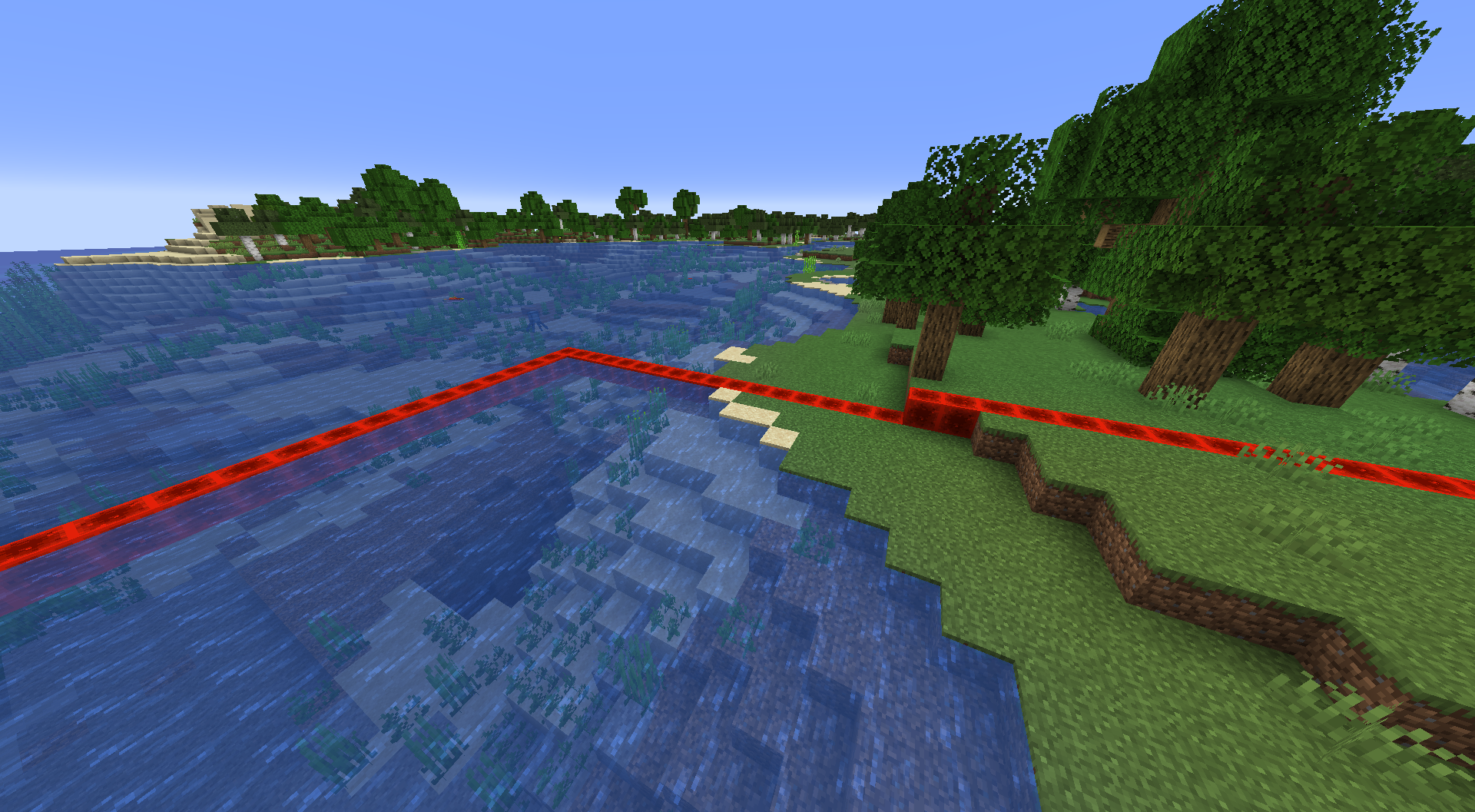
This border appears on the highest block present in the world. It's good for use when you're outside, but usually not that effective when underground. In any case, it's mostly subtle, and only appears on the client side.
This border can also accept a heightmap, in case you want the definition of "highest block" to change. The most important heightmaps are:
world_surface– The highest non-air block.ocean_floor– The highest block that blocks motion completely, not including waterlogged blocks.motion_blocking– The highest block that blocks motion completely and blocks that are liquids.motion_blocking_no_leaves– The highest block that blocks motion completely, excluding leaves.
reset_rules:
    -   enabled: true
        borders:
            -   type: highest_block
                # How many chunks away do you have to be for the border to appear?
                distance_chunks: 3
                # The heightmap to use
                heightmap: ocean_floor
                # The block to show
                block: minecraft:redstone_block
Particle border
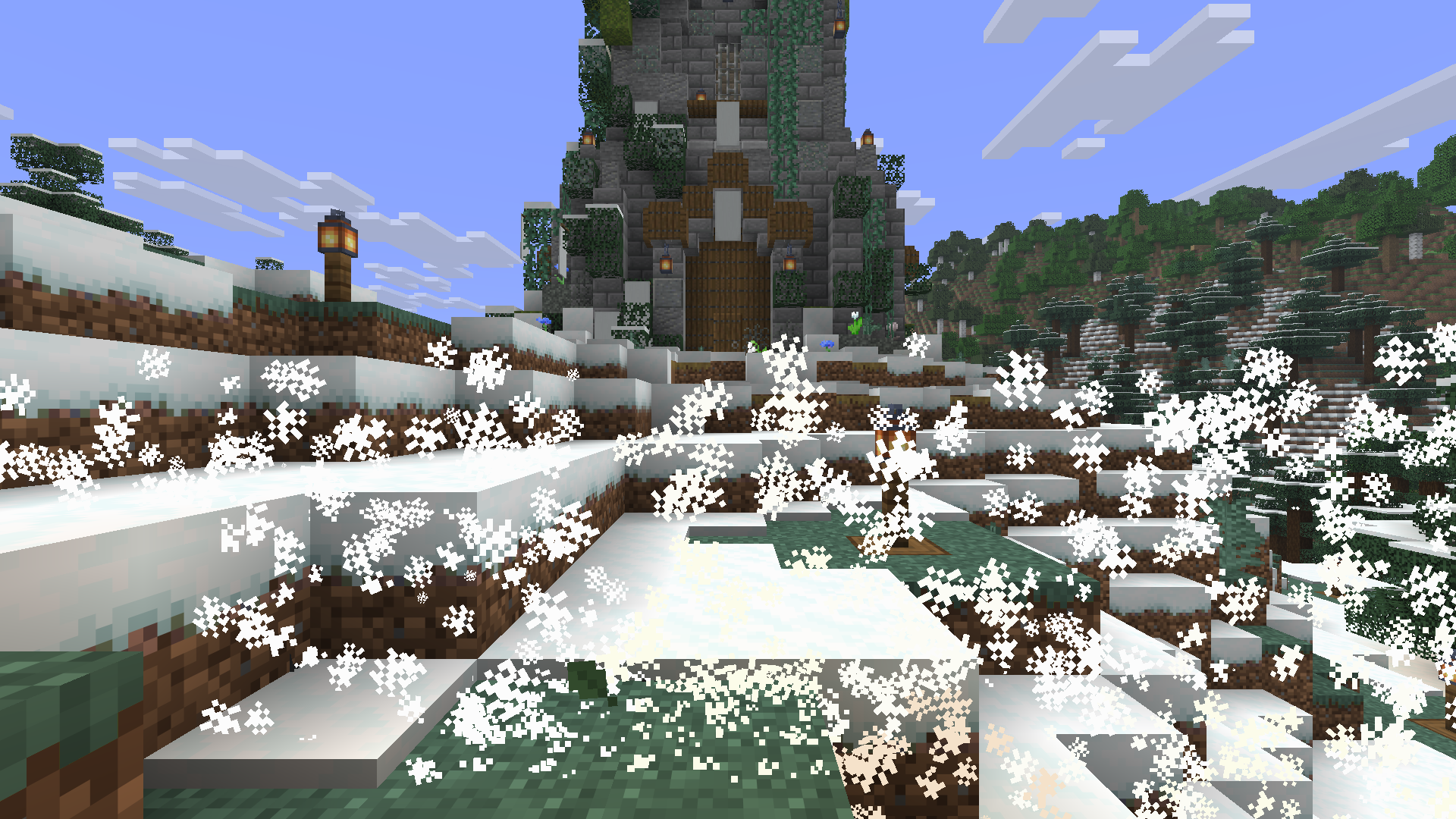
This border shows a set of particles as the player nears the border. Unlike the highest block border, this border will be visible even when underground. Also unlike the highest block border, the distance at which the border will show up are in blocks. The example above includes the highest block border too. They're configured separately.
You can find a list of all available particles IDs on the Minecraft wiki.
reset_rules:
    -   enabled: true
        borders:
            -   type: particles
                # How many particles to display per tick
                count: 1
                # How many blocks away do you have to be for the border to appear?
                distance_blocks: 10
                # How high will the border be? This grows as a radius both upwards
                # and downwards from the player's feet.
                height: 1
                # What pattern should the particles follow? See below for more details.
                pattern: random
                # The particle to show
                particle: falling_dust
                # Particle data, if applicable. See below for more details.
                data: snow
Pattern
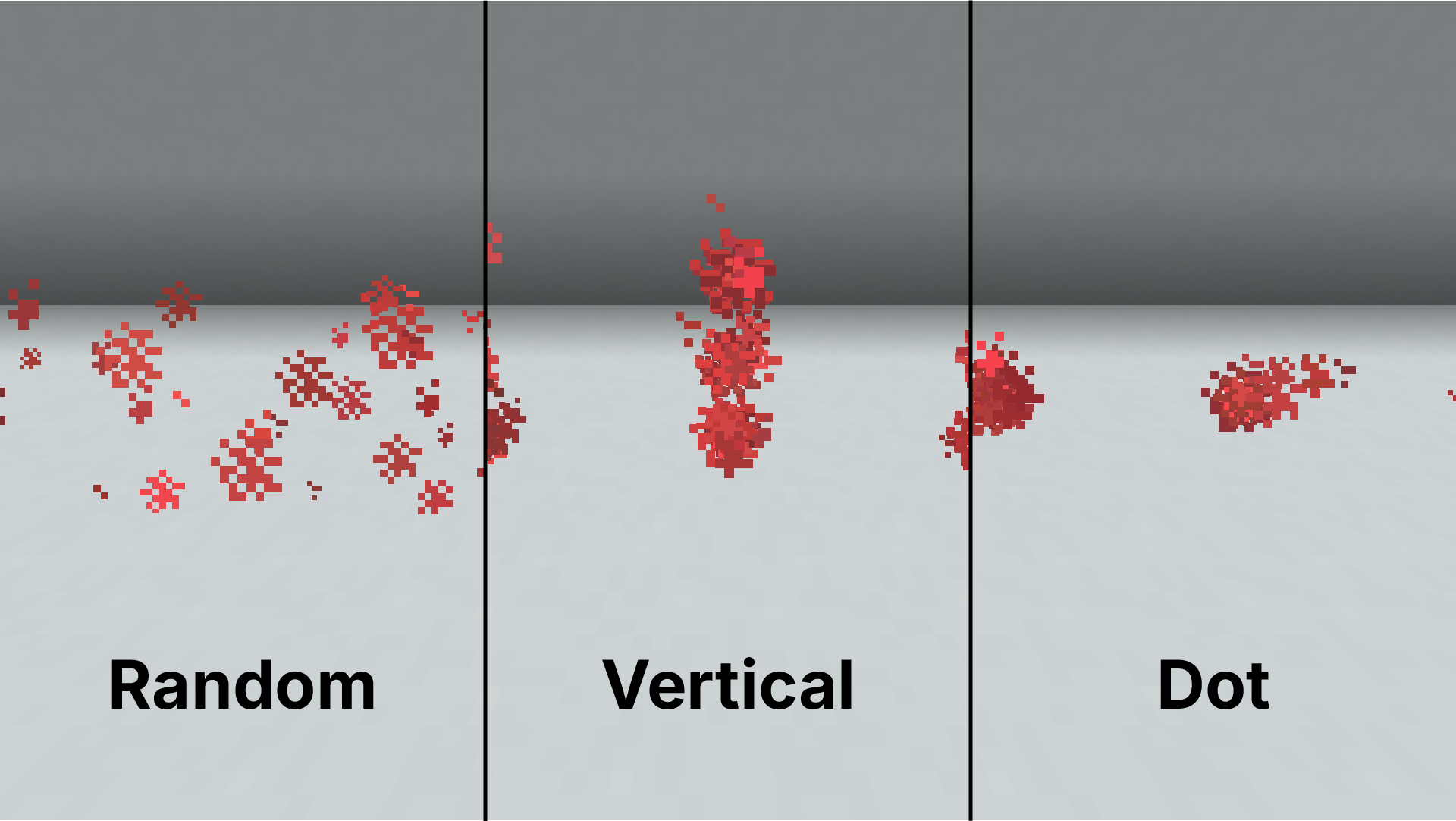
Particles can be shown in either dot, vertical, or random patterns. The dot pattern spawns as a single particle
at the center of the block, the vertical pattern spawns a vertical line of particles that resemble prison bars, and
the random pattern scatters the pattern randomly across the block.
Note that depending on the type of particle, the pattern might not be visible. Some particles tend to deviate from the position they're spawned, which will lead to more "explosive" patterns.
Data
Particles can optionally hold data. Particle data affects how that particle will appear in the world. For all particles
that are listed below, you can add some data to change how a specific particle looks. This parameter is added with the
data key.
For all color values below, Homerun supports a color name, hexadecimal value in the format #RRGGBB or a Minecraft color code by
number (0-15). For example, 'red', '#FF0000', or 14 will all give you red. Don't forget your quotes!
dust- Accepts a data object, containing two other properties:
color– A color value, in the same format as above.size– A number, which is the size of the particle. The default
dust_color_transition- Accepts a data object, containing three other properties:
from_color– A color value, in the same format as above.to_color– A color value, in the same format as above.size– A number, which is the size of the particle. The default
block,falling_dust,dust_pillar,block_crumble, andblock_marker- Accepts a block name, like
gravelor a block state object containing two other properties: block– The block ID, likegravel.data– Block data, like'[lit="true"]'. This is optional, and can be omitted if you don't need it. Make sure to include quotes around the block data, or else you might end up creating an array instead.
- Accepts a block name, like
item- Accepts an item name, like
breador an item state object containing two other properties: item– The item ID, likebread.data– Item data components as an object (not a string, unlike block data). Usually, you would never need this.
- Accepts an item name, like
entity_effectandtinted_leaves- Accepts a color value.
sculk_charge- Accepts a number, determining the particle roll in radians.
dragon_breath- Accepts a number, determining the particle power.
shriek- Accepts a number, determining the delay in ticks.
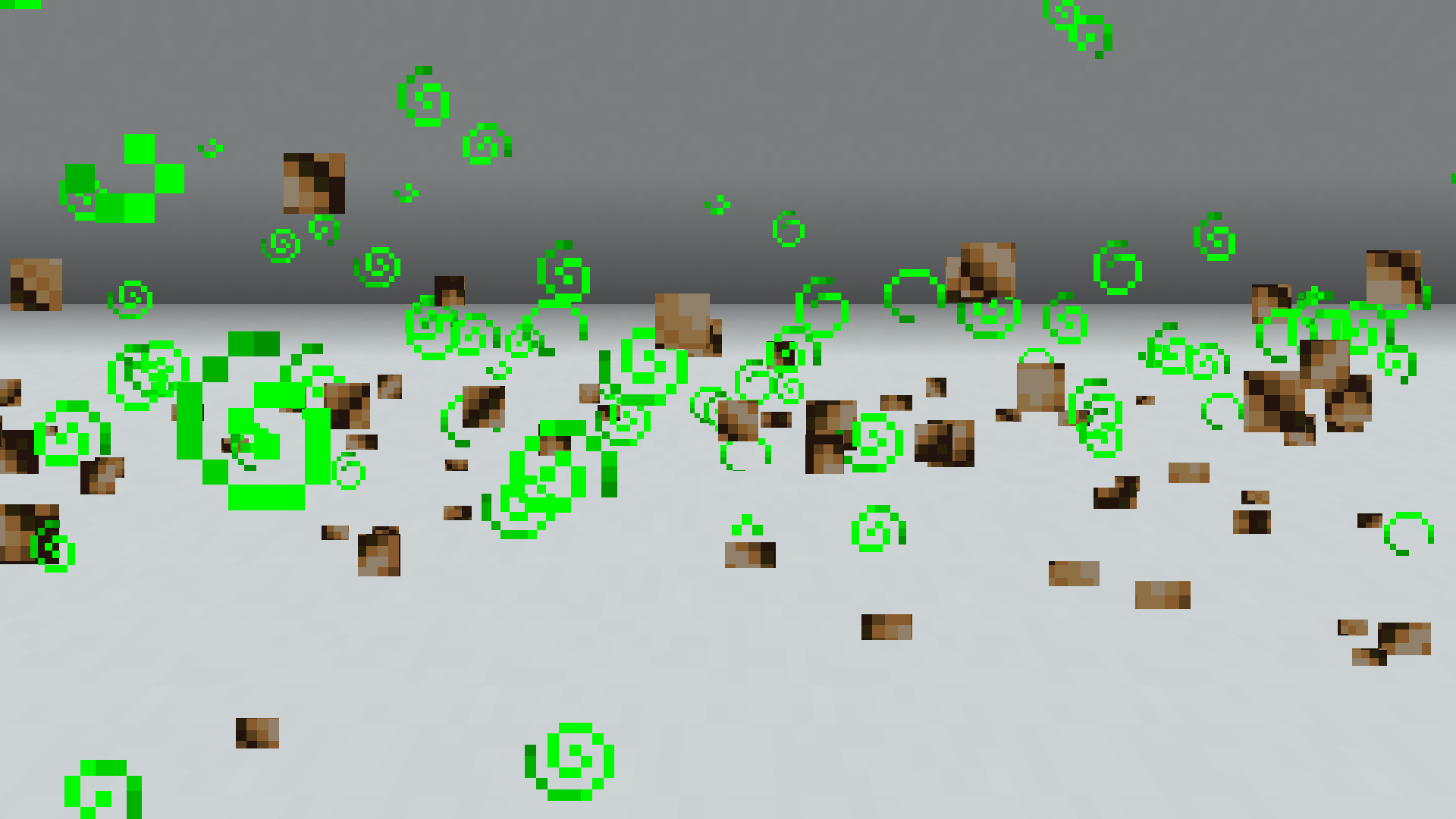
reset_rules:
    -   enabled: true
        borders:
            -   type: particles
                distance_blocks: 10
                particle: block
                data:
                    block: redstone_lamp
                    data: '[lit="true"]'
            -   type: particles
                distance_blocks: 3
                particle: entity_effect
                data: '#00ff00'
Chat announce
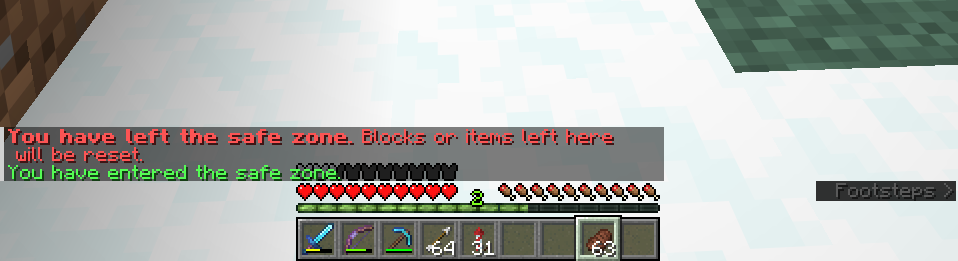
A super simple border that just announces when a player has crossed the border in chat. This only appears to the player
who crossed the border, and not to anyone else. To change the text that appears to the player, edit the border-exit
and border-enter messages in the messages.yml file.
reset_rules:
    -   enabled: true
        borders:
            -   type: chat_announce
                # Whether a message should be sent when the player enters a retained chunk.
                # Enabled by default.
                notify_enter: true
                # Whether a message should be sent when the player exits a retained chunk.
                # Enabled by default.
                notify_exit: true
Action bar announce
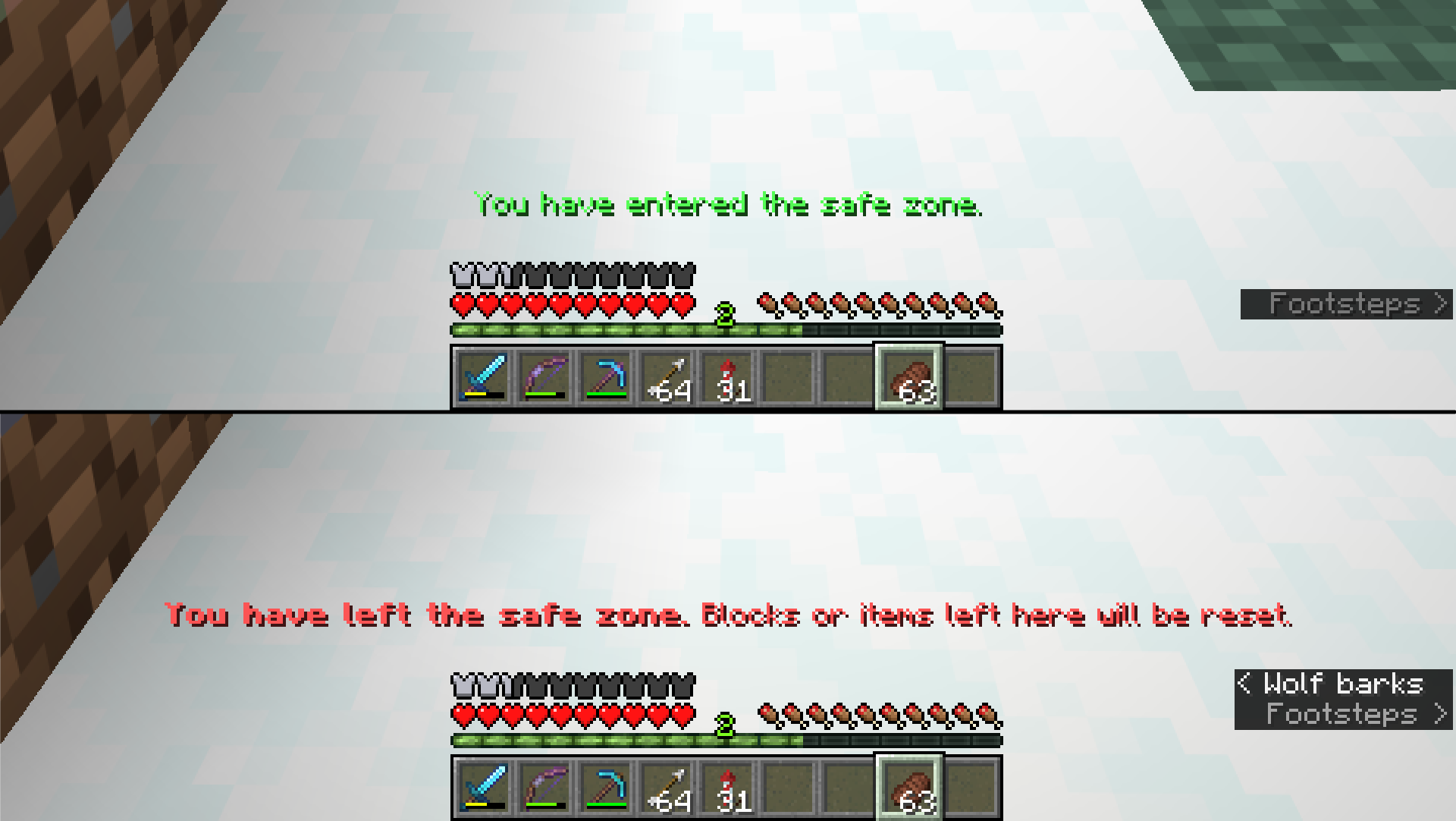
Another super simple border that tells the player when they've crossed a border in the action bar. This is the same
spot where messages like "You can sleep only at night" appear. To change the text that appears to the player, edit the
border-exit and border-enter messages in the messages.yml file.
reset_rules:
    -   enabled: true
        borders:
            -   type: action_bar_announce
                # Whether a message should be sent when the player enters a retained chunk.
                # Enabled by default.
                notify_enter: true
                # Whether a message should be sent when the player exits a retained chunk.
                # Enabled by default.
                notify_exit: true
Consumable border
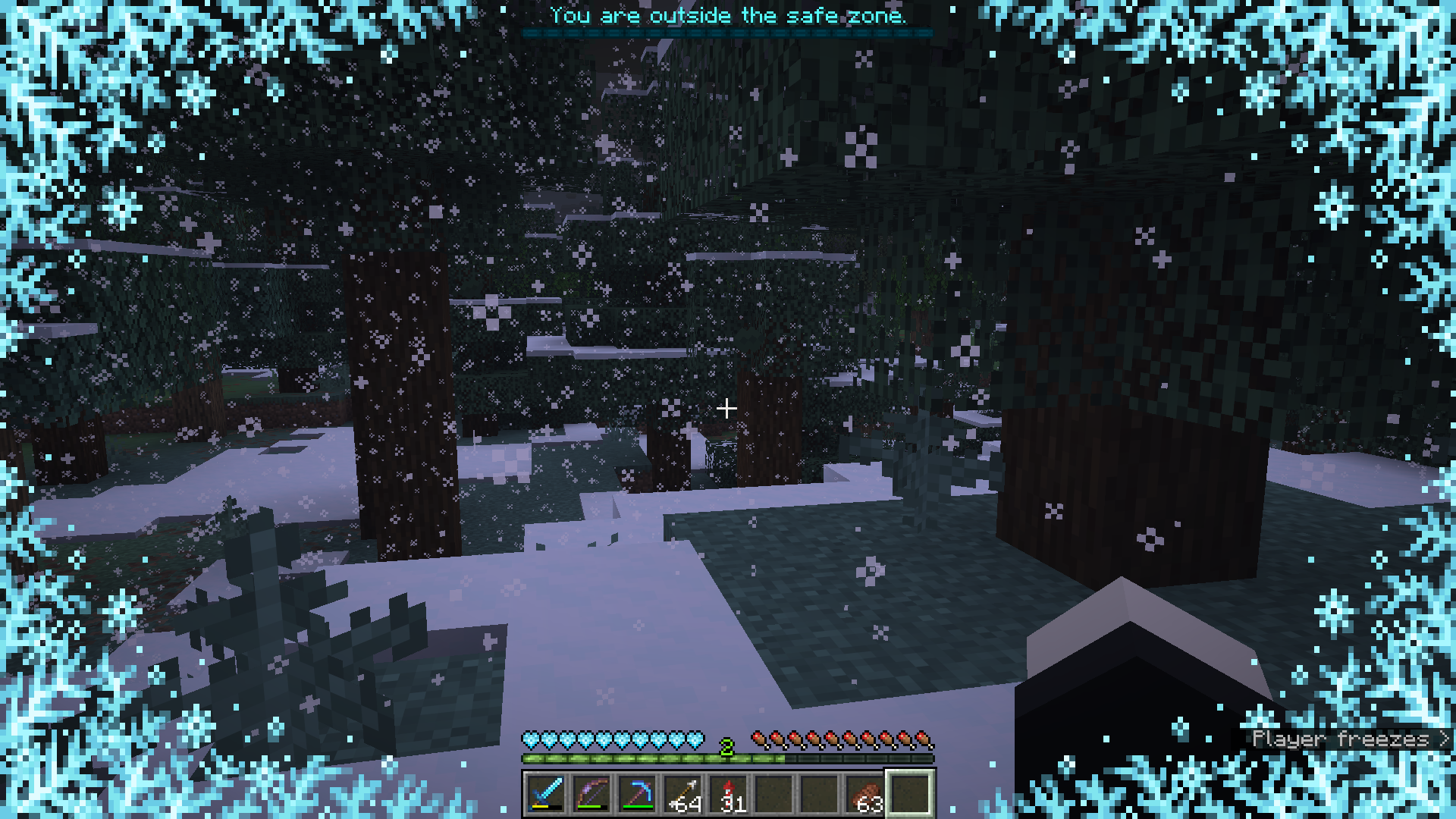
By far the most complicated border, but also the most fun to set up. Consumable borders allow you to add an extra layer of survival over your existing survival world. Consumable borders are, as the name implies, consumable. When outside the border, players "consume" from a set amount of time that they can spend outside the border. Once that time runs out, the player could start taking damage, or freeze, or something else.
This helps keep your world interesting by incentivizing players to stay within the border, forcing closer interaction rather than having all your players scurry around like rats all across the world.
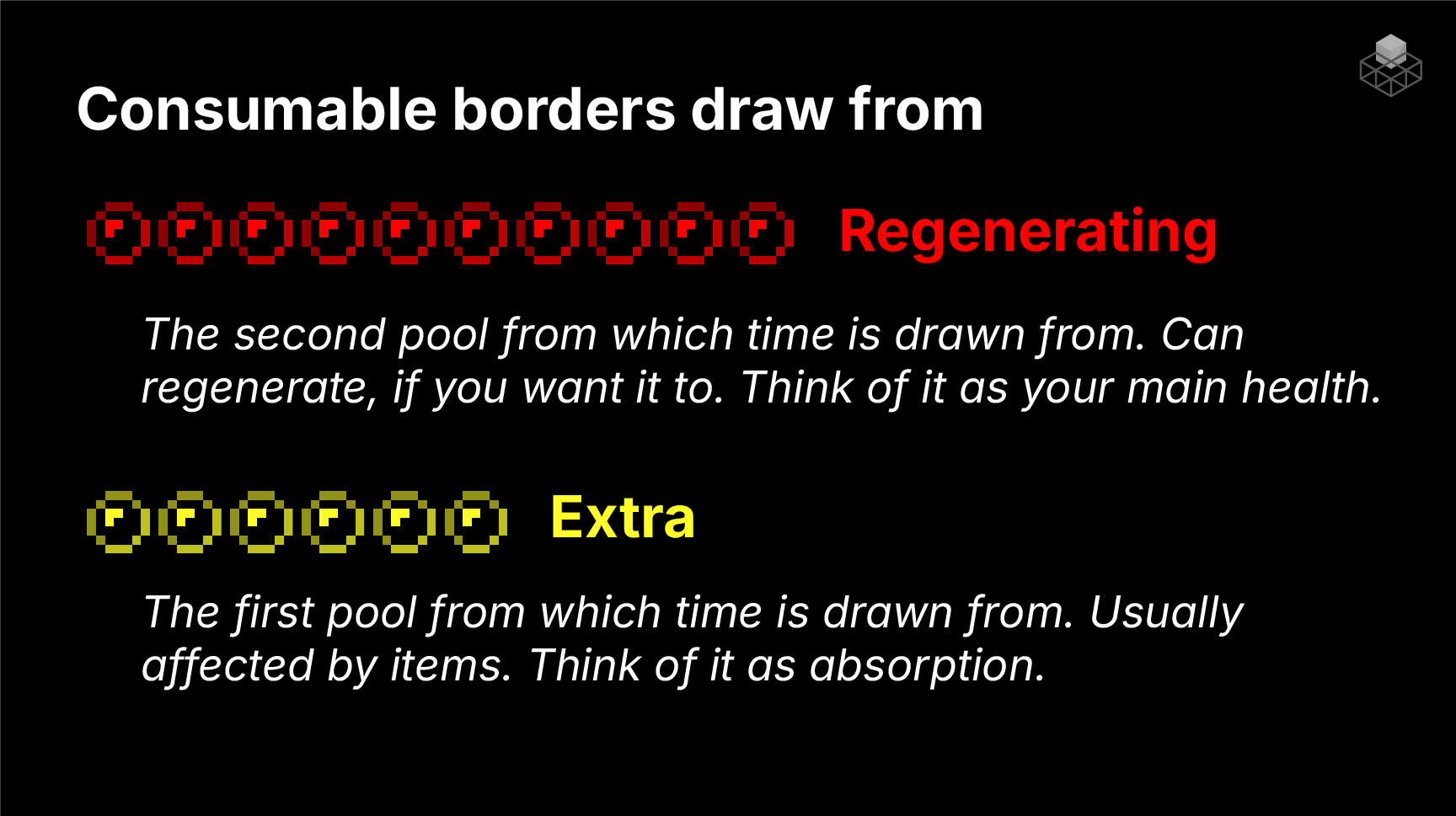
There are two "tanks" from which players can consume time: the regenerating time and the extra time. The regenerating time can (as the name implies) regenerate, and is the default amount of time given to a player when they first join. The extra time is a bonus that always gets drained first and does not regenerate. Extra time can be given to players with events (more details below).
reset_rules:
    -   enabled: true
        borders:
            -   type: consumable
                # The warning type to use. See below for more details.
                warning_type: boss_bar
                # How many seconds to wait until the warning shows up. This is most
                # useful when you use an action bar warning type, and also have an action
                # bar announce border. Otherwise, you can remove this entirely.
                show_after: 0
                # The base time a player can spend outside the border **in ticks**.
                # One real world second is 20 Minecraft ticks. This amount can regenerate
                # or reset based on your other settings.
                duration: 60
                # How much of the time should regenerate for every tick spent inside a retained
                # chunk. Leave this blank or set it to zero to disable regeneration.
                regeneration: 0
                # When should the player's regenerating time be reset?
                reset_when:
                    # When the player enters a retained chunk.
                    - on_entry
                    # When the world gets reset by Homerun.
                    - on_reset
                # Should extra time also get reset when the above triggers happen?
                reset_extra: false
                # The maximum amount of extra time a player can have. This prevents players
                # from hoarding extra time and bypassing the intended survival mechanics.
                # By default, extra time is entirely disabled (set to 0).
                max_extra: 0
                # The effects to apply to a player once their time runs out. See more details below.
                effects:
                    -   freezing
                # Events that can give a player regenerating or extra time. See more details below.
                events: []
                # Multipliers that can be applied to the player's drain rate. See more details below.
                multipliers: []
                # Subtractions that can be applied to the player's drain rate. See more details below.
                subtractions: []
Warning types
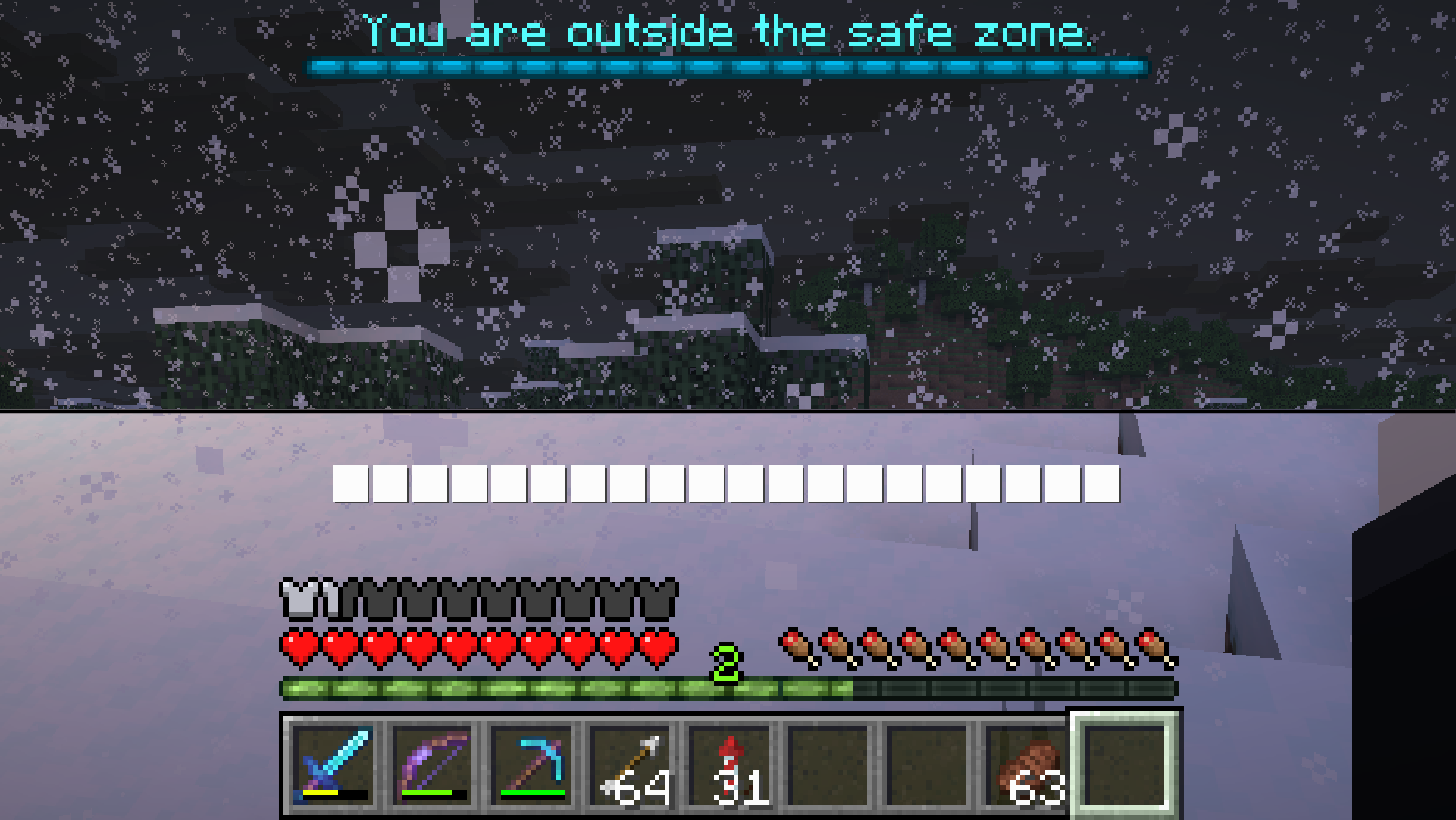
There are two possible warning types for consumable borders: boss_bar and action_bar. The boss bar warning type
shows a boss bar at the top of the screen, while the action bar warning type shows a set of boxes on the action bar.
reset_rules:
    -   enabled: true
        borders:
            -   type: consumable
                warning_type: boss_bar
reset_rules:
    -   enabled: true
        borders:
            -   type: consumable
                warning_type: action_bar
Effects
Currently only one effect exists: a freezing effect. This effect applies a freezing graphic on the player's screen,
slows them down, and makes them start taking damage over time. Freezing still causes damage even if the player is
wearing leather armor, unless leather armor explicitly prevents time drain.
Events
Events allow players to receive regenerating or extra time when they perform certain actions. Currently, this only
supports consume triggers.multiply
consume
consume triggers fire when a player consumes (eats or drinks) an item. Events can perform any of
two possible operations: add and multiply. For subtraction and division, use negative values and fractions,
respectively.
reset_rules:
    -   enabled: true
        borders:
            -   type: consumable
                events:
                    # Give someone 60 seconds of extra time when they drink a water bottle.
                    -   operation: add
                        amount: 1200
                        # Apply this operation when ANY of the following happens:
                        triggers:
                            # Player consumes a water bottle.
                            -   type: consume
                                item: water_bottle
                    # Double the extra time that the player already has when they drink a golden carrot.
                    -   operation: multiply
                        amount: 2
                        triggers:
                            -   type: consume
                                item: golden_carrot
You can change which time tank to target with the target key. By default, events target the extra time tank.
reset_rules:
    -   enabled: true
        borders:
            -   type: consumable
                events:
                    # Give someone 60 seconds of regenerating time when they drink a water bottle.
                    -   operation: add
                        amount: 1200
                        target: regenerating
                        # Apply this operation when ANY of the following happens:
                        triggers:
                            # Player consumes a water bottle.
                            -   type: consume
                                item: water_bottle
Multipliers and subtractions
Multipliers and subtractions allow you to change the drain rate of a player based on certain conditions. For example, you could make players invincible to time drain when they're wearing leather armor. All examples here work for both multipliers and subtractions, though make sure that you're using the correct drain rate multiplier/subtrahend to avoid unexpected drain.
The base drain time is 1 (i.e. 1 time unit per tick). This can be either multiplied or subtracted. To completely
stop time drain, the subtractions must total at least 1.
Currently, only a worn condition is supported.
worn
The worn condition checks if a player is wearing a specific piece of armor. If the player is wearing that piece of
armor, the multiplier will be applied to their drain rate. Five additional multipliers allow you to check for the
specific armor combination:
find_all– Whether all required armor pieces need to be found for this condition to be true.- This isn't necessary if you're only checking one armor piece.
require_helmet– Whether this armor piece must be worn on the head.require_chest– Whether this armor piece must be worn on the chest.require_leggings– Whether this armor piece must be worn on the legs.require_boots– Whether this armor piece must be worn on the feet.
Should find_all be false and the armor piece is not found in at least one of the required slots, the
multiplier/subtraction will not be applied.
This condition requires an item key, which is the ID of the item to check for. It also optionally accepts a
components key, which is an object of item components to check for. For example, you could check if a player is
wearing a leather helmet with a specific armor trim. If the item is '*' (an asterisk), any item will match, and the
components key will be checked against whatever item is in that slot.
reset_rules:
    -   enabled: true
        borders:
            -   type: consumable
                multipliers:
                    # If the player is wearing leather armor, they will drain time at half the normal rate.
                    -   amount: 0.5
                        conditions:
                            -   type: worn
                                require_helmet: true
                                item: leather_helmet
                            -   type: worn
                                require_chest: true
                                item: leather_chestplate
                            -   type: worn
                                require_leggings: true
                                item: leather_leggings
                            -   type: worn
                                require_boots: true
                                item: leather_boots
                subtractions:
                    # If the player is wearing any armor piece with a Netherite ward trim, they will
                    # not drain time at all.
                    -   amount: 1.0
                        conditions:
                            -   type: worn
                                find_all: false
                                require_helmet: true
                                require_chest: true
                                require_leggings: true
                                require_boots: true
                                # This needs quotes if it's an asterisk!
                                item: '*'
                                components:
                                    trim:
                                        pattern: ward
                                        material: netherite